Onboarding
In this document we explain how to add users (“members”) to your organization with a SadServers business plan.
Organization Section
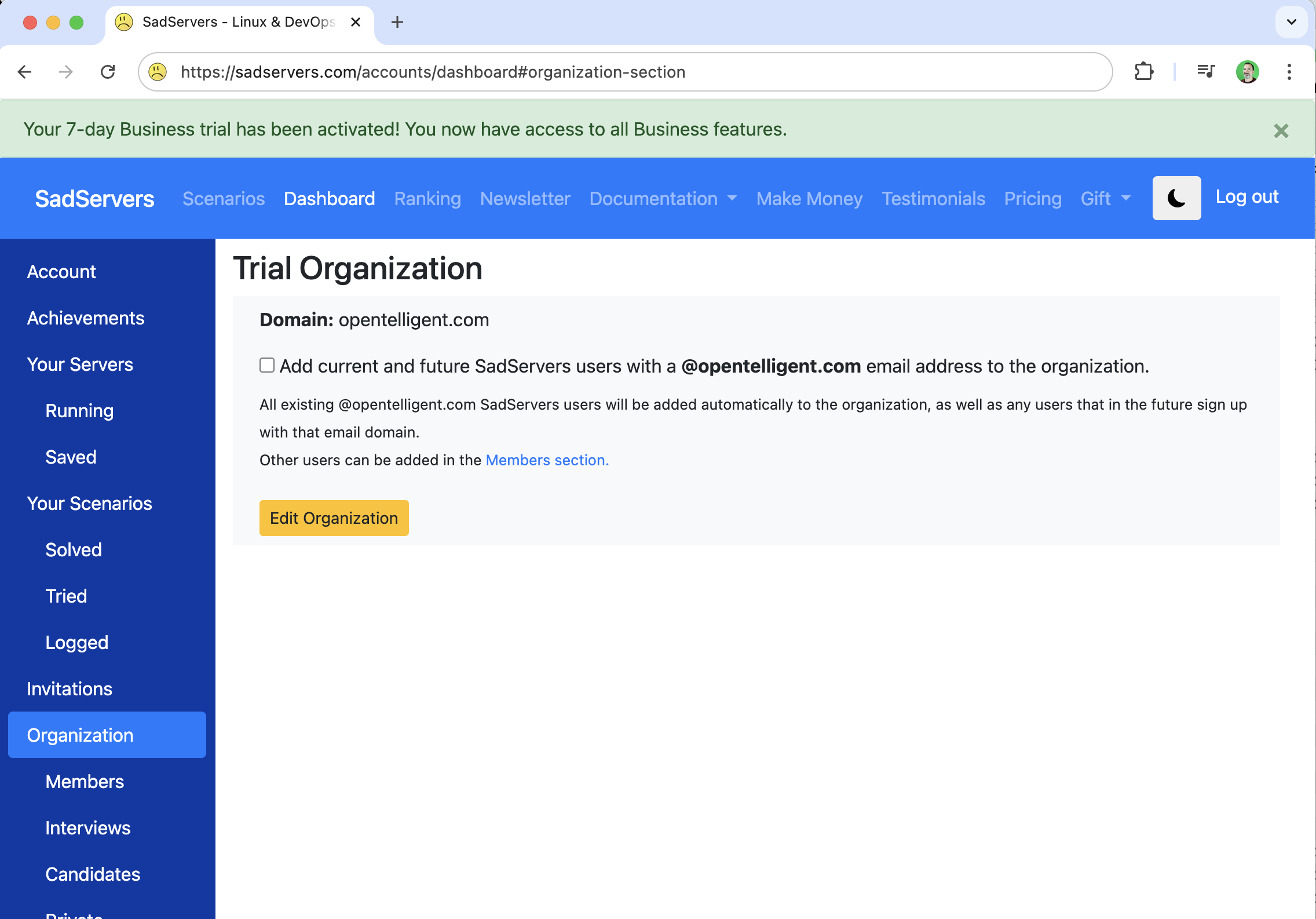
Right after you purchase the Business account subscription (or after you start the trial), you are taken to the Organization section of your Dashboard.
In this web page you can see the name of your organization (initially set to “Trial Organization” or “My Organization”).
You can also see the domain name of your organization (which is initially set to the domain name of your email account, or to a random name).
In the example below, a SadServers user with account email finance@opentelligent.com just started a Business account trial.
Changing the Organization Name or Domain
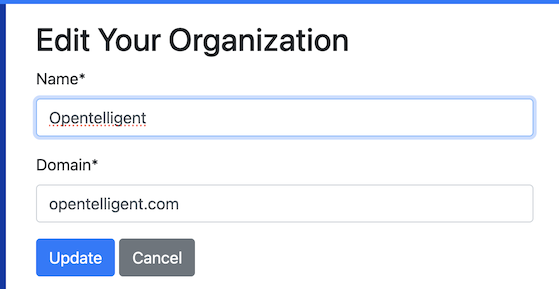
Clicking on the “Edit Organization” button we can change the organization’s name or domain name. In this example we just changed our organization name to “Opentelligent”.
Using your domain name to onboard users in your organization automatically
Back to the Organization screen, we have the option to enable the checkbox “Add current and future SadServers users with a @opentelligent.com email address to the organization.”
In this example, we have checked the box.
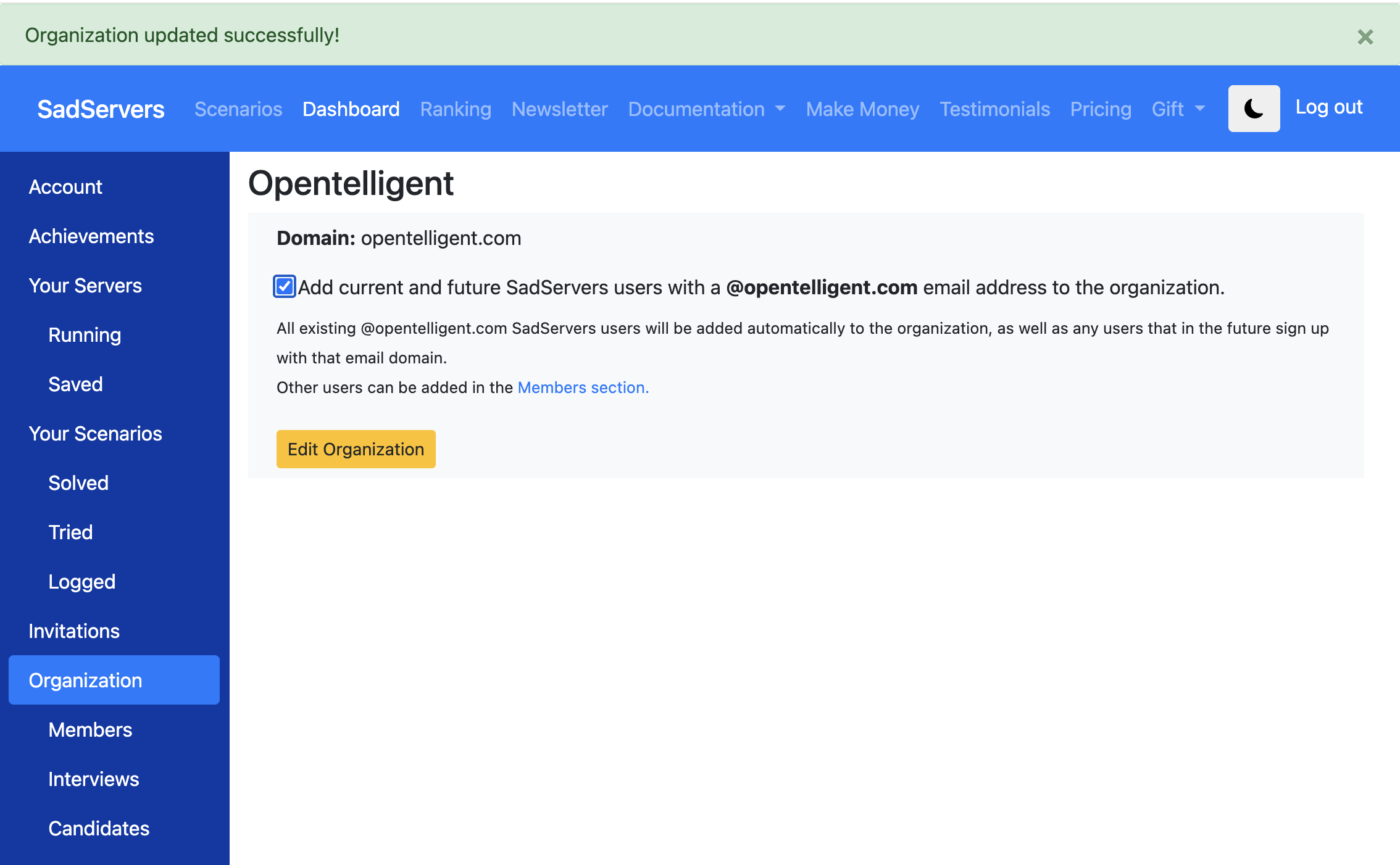
As explained in this webpage, by checking that box, all existing SadServers users with emails in your organization’s domain (@opentelligent.com in this example) will be added automatically to the organization. Also, any users that in the future sign up with your email domain will also be added to your organization.
If you don’t enable this option, you have more control over who can use the SadServers business account. You (or any existing member of the organization) can add users to the organization in the Members section page.
Members Section
In the Members section you can see and manage the users in your organization. (You may need to refresh the page to see updates).
Here in this example below we can see an additional member that was added automatically using the organization’s domain name and the setting from the previous Organization section.
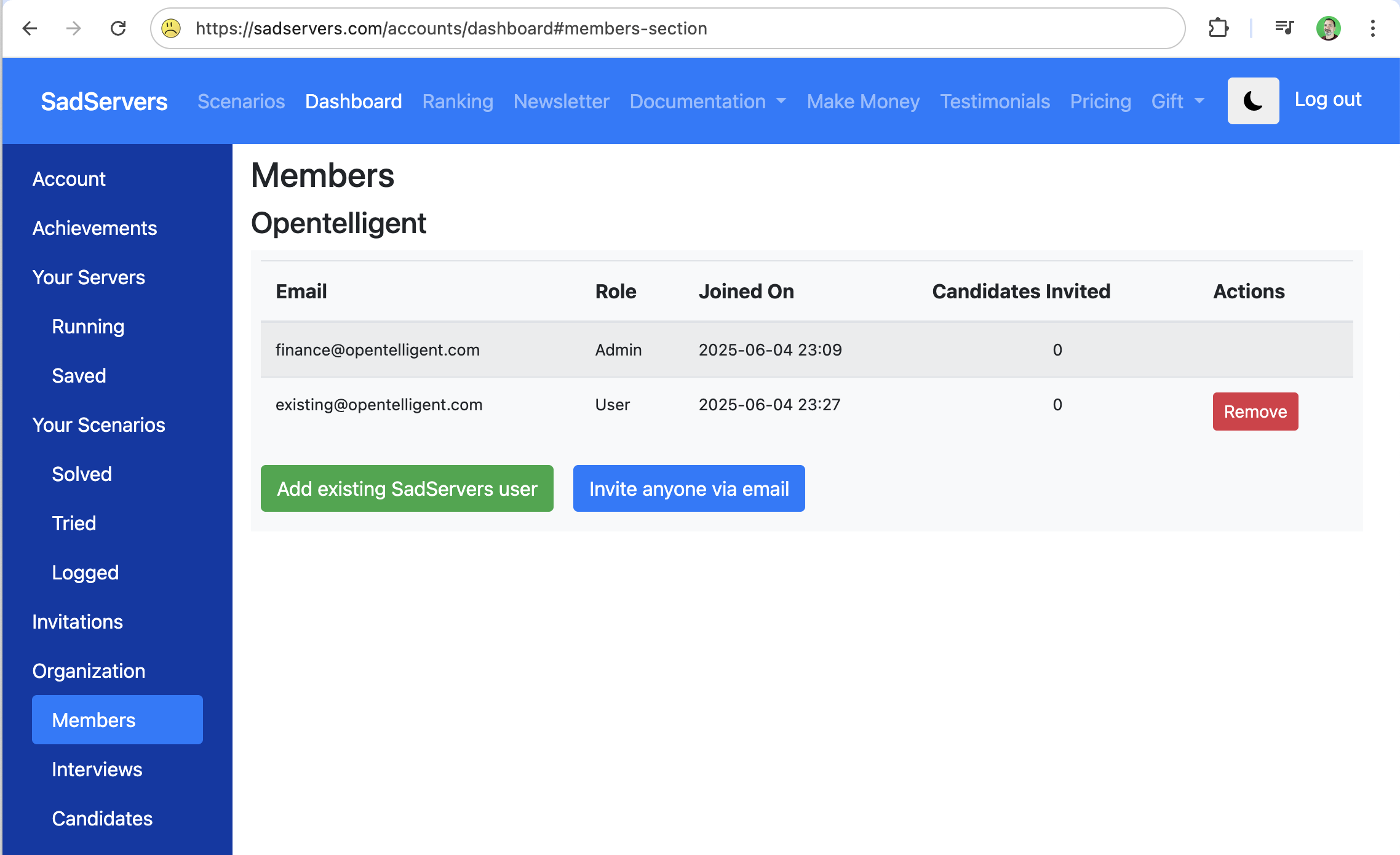
The SadServers user that started the trial or who purchased the Business plan is shown as “Admin” Role and the other people will show as “User” role. This is currently done to show to all users who is the person responsible financially for the Business account.
Access Model
At the moment, there is a flat access model for all members of an Organization; all members have all the powers in the sense the member users can view and edit (add, change and delete) all the organization resources (members themselves, interviews and candidates). The only restriction is that a member cannot remove themselves from the organization and a member cannot remove the Admin user.
Removing a Member
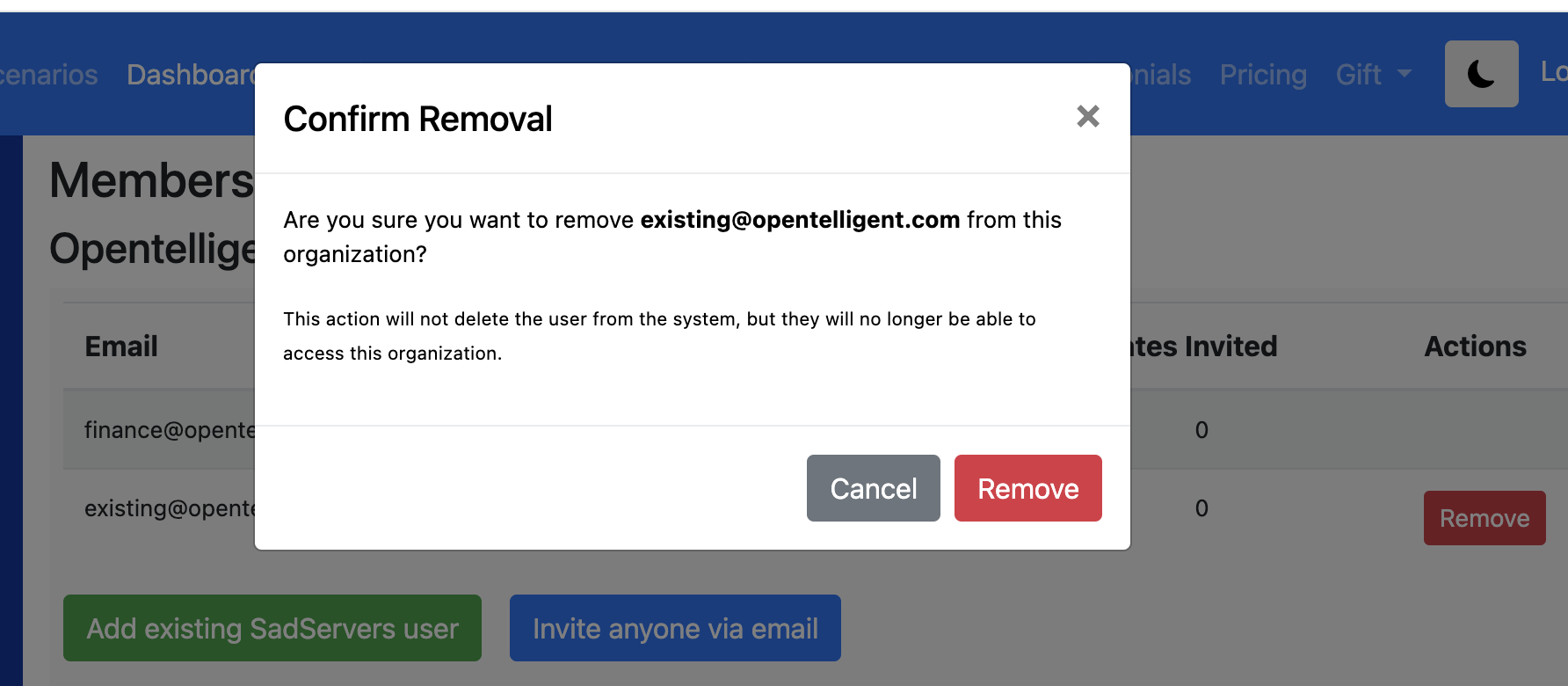
To remove a member from your organization, click on their corresponding “Remove” button and confirm. Their SadServers account will remain intact but they won’t have access to your organization.
Adding a Member
You can add anyone to your organization, regardless of their email domain (for example you want to add a contractor).
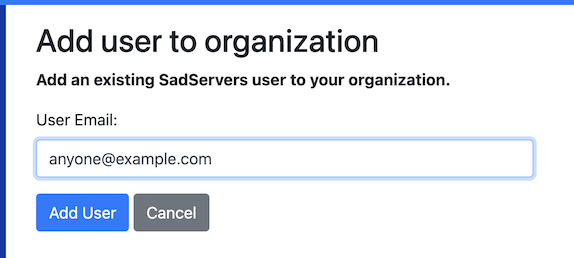
To add somebody who already has a SadServers account, click on the “Add existing SadServers user”, this user will be immediately added to your organization.
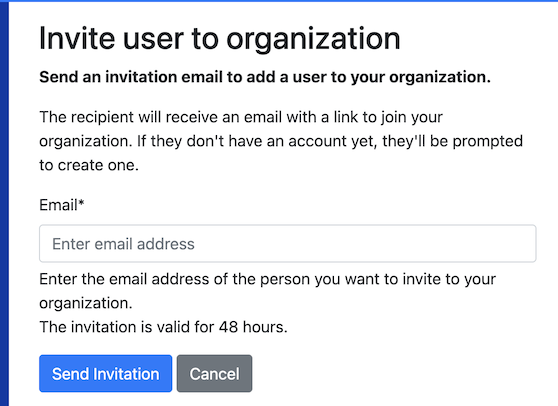
If you want to add someone who doesn’t yet have a SadServers account, you can click on the “Invite anyone via email” button. In the opened form you can send an invitation link to an email address to join your organization. The invitation is valid for 48 hours.