Command Line Interface (CLI) - Terminal User Interface (TUI)
What
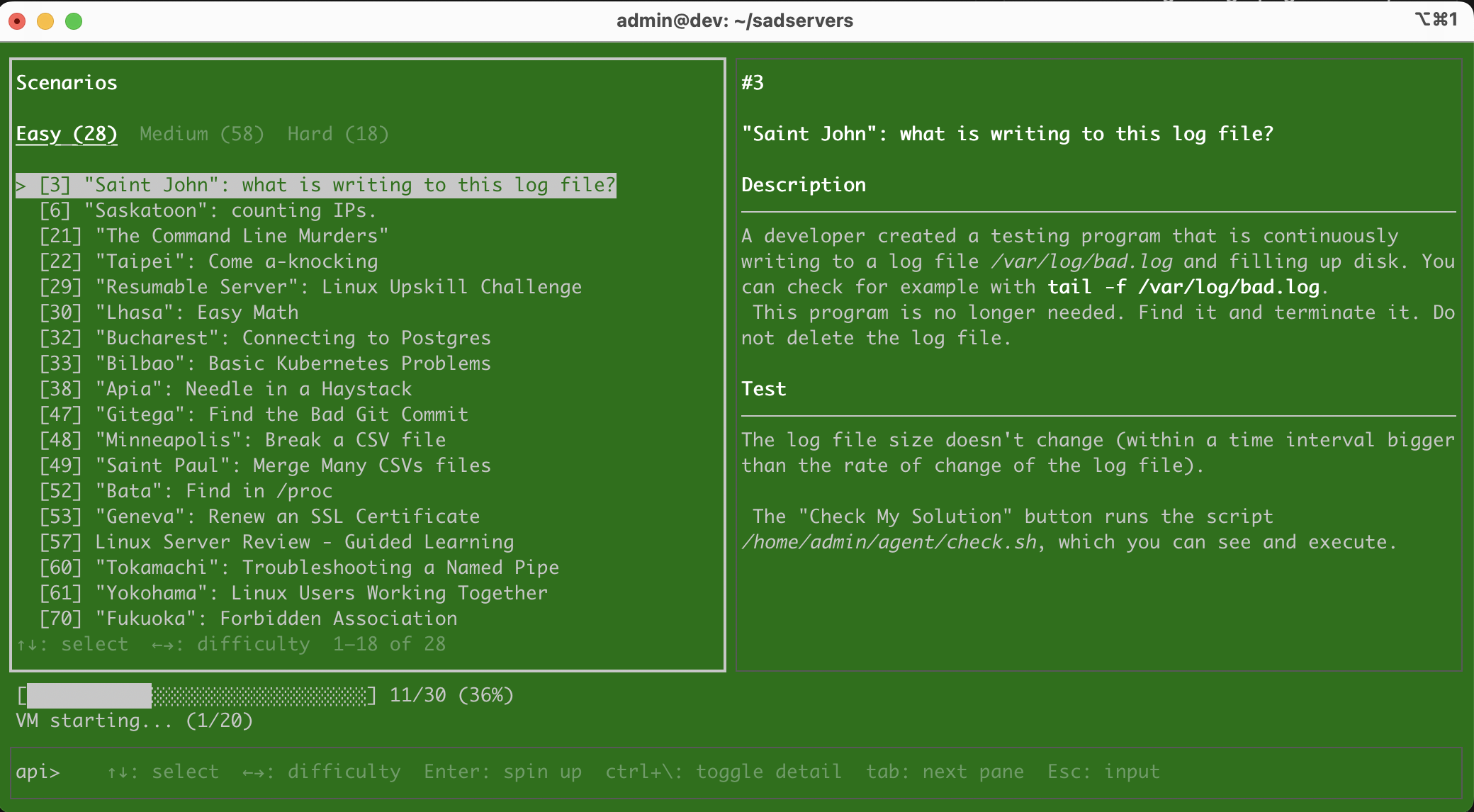
The SadServers cli/tui is a program that facilitates running SadServers scenarios directly from the command line.
Note: currently only Pro+ and Business users will be able to run scenarios from the cli/tui client.
Note: this tool is in beta at the moment (offered as-is, not supported).
Why
Why not? Many users like to live in the command line and optimize the use of the keyboard.
Installation
| Architecture | File |
|---|---|
| Linux amd64 | sads_v0.1.1_linux_amd64 (12 MB) MD5 2b8288bf053a91ffff7cbf4d005461e6 |
| Linux arm64 | sads_v0.1.1_linux_arm64 (11 MB) MD5 b25a4f876ec58f393f35bb3b9006fcb9 |
| Mac amd64 | sads_v0.1.0_darwin_amd64 (14 MB) MD5 01d1b106b8ff1dc57ee40058307ea7f3 |
| Mac arm64 | sads_v0.1.0_darwin_arm64 (15 MB) MD5 34d650ef99379503dc0bd9a449dac994 |
Download the binary for your architecture, make it executable and then rename it for convenience, e.g: mv sads_v0.1.0_linux_amd64 sads; chmod +x sads
Check with sads -h or sads -v that the binary works.
Note: from the same directory you can call the binary with ./sads (sads without the path won’t find the file) or put the binary in a place that is in your $PATH like /usr/local/bin.
Mac users
When trying to run the executable you’ll get a message like "sads_v0.1.0_darwin_arm64" can’t be opened because Apple cannot check it for malicious software."
Go to System Settings -> Privacy & Security, scroll down to the Security section and find the text:
"sads_v0.1.0_darwin_arm64" was blocked from use because it is not from an identified developer , then click on the “Allow Anyway” button underneath it if you trust us. The first run after this a window will ask to confirm as well.
Usage
Running sads with no arguments launches the interactive TUI. All functionality is also available as direct subcommands.
sads [command]Commands
| Command | Description |
|---|---|
sads / sads ui | Launch the interactive TUI |
sads auth / sads login | Authenticate via browser (device flow) |
sads auth clear | Remove the stored token |
sads logout | Invalidate the token server-side and clear it locally |
sads config | Set the SSH private key path (opens a file picker) |
sads config --path ~/.ssh/id_ed25519 | Set the SSH private key path directly |
sads scenarios | List all scenarios |
sads scenarios show <id> | Show details for a scenario |
sads up <id> | Spin up a VM for a scenario and wait for it to be ready |
sads status | Show the status of your most recent VM |
sads check | Run the solution check against the active VM |
sads ssh | Open an SSH connection to the active VM |
sads down | Shut down the active VM (prompts for confirmation) |
Flags
sads -horsads --help: lists available commands and flagssads -vorsads --version: prints current version
Workflow
This is a typical “happy path” workflow:
# 1. Authenticate
sads auth

# 2. Browse scenarios and spin one up
sads scenarios
sads up 5

# 3. Connect once the VM is ready
# (requires a public key uploaded in the dashboard and "sads config" to indicate the private one)
sads ssh

# 4. Verify your solution
sads check

# 5. Tear down the VM when done
sads down
Authentication
sads auth
# Opens a verification URL — complete login in your browser,
# then press Enter in the terminal.
Credentials are stored at:
- macOS:
~/Library/Application Support/sadservers/config.json - Linux:
~/.config/sadservers/config.json
The SSH private key path is stored in the same file and survives logout.
Environment Variables
| Variable | Description |
|---|---|
SADS_LOG=true | Enable structured JSON logging to sadservers.log in the working directory. Logging is off by default. |
SADS_API_URL=<url> | Override the API base URL. Defaults to https://sadservers.com. |
TUI
The TUI is split into two panes. The left Problem pane shows scenario details, API responses, and status messages. The right SSH pane is a virtual terminal connected to the active PTY process.
The bottom input bar changes prompt based on the current mode:
| Prompt | Mode | Available input |
|---|---|---|
auth> | Unauthenticated | login / auth |
↩> | Auth pending | Press Enter to poll after completing browser login |
api> | Authenticated | scenarios, up <id>, show/cd/describe <id>, status, ssh, check, down, config [--path <path>], logout, help |
Keyboard shortcuts:
| Key combination | Action |
|---|---|
Ctrl+Q | quit |
Ctrl+C | quit (when input focused) or kill active subprocess |
Tab / Shift+Tab | cycle difficulty groups in the scenarios list |
↑ / ↓ / PgUp / PgDn | scroll scenarios list or problem pane |
Esc | return from scenario detail to the scenarios list |